
User guide
Learn the app, one screen at a time.
Getting started
First setup, your board, and editing access.
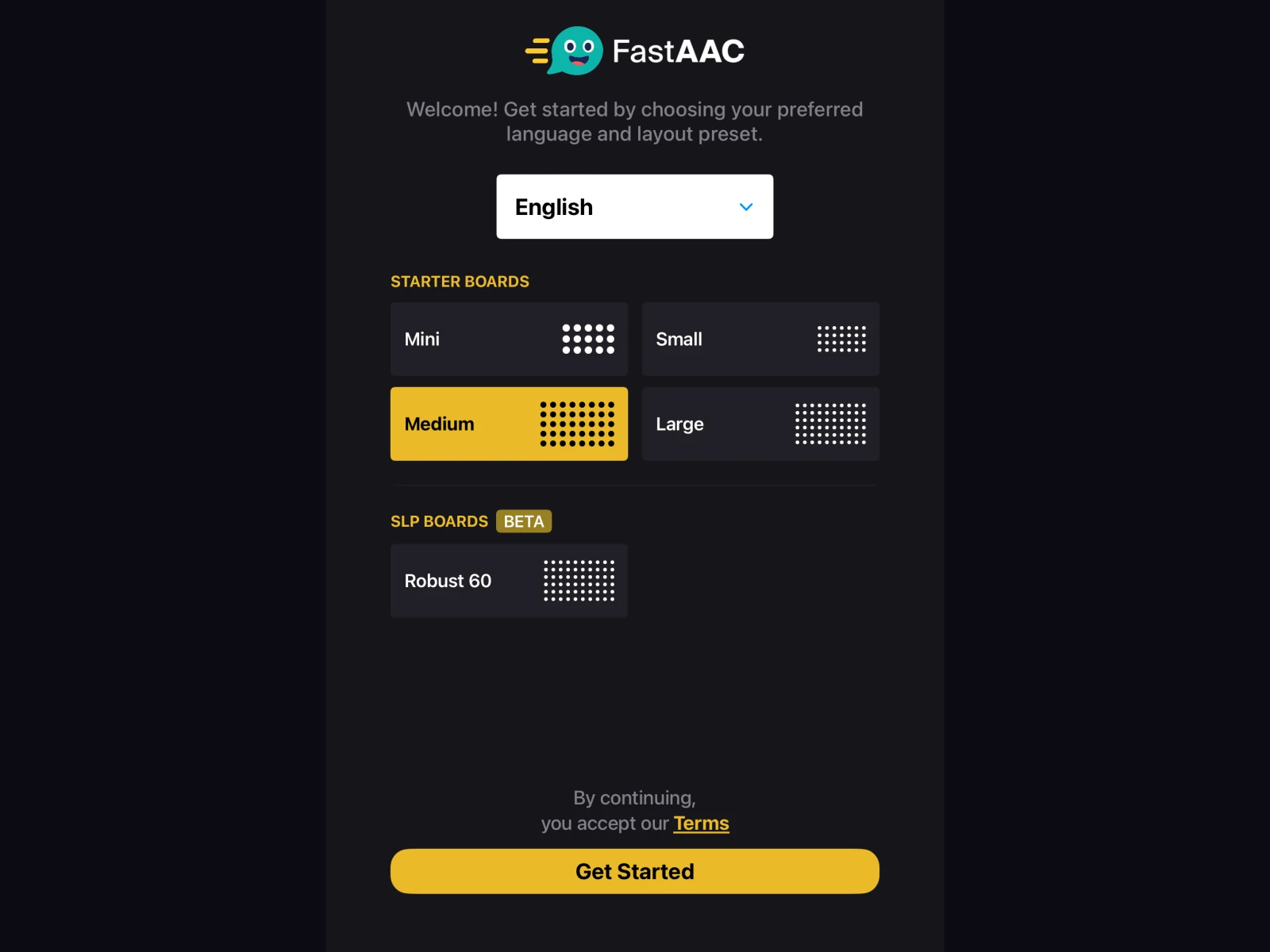
Select a number to explore
Starting board
Starter Boards offer different layouts. Robust 60 appears under SLP Boards.
Read the steps : Setting up Fast AAC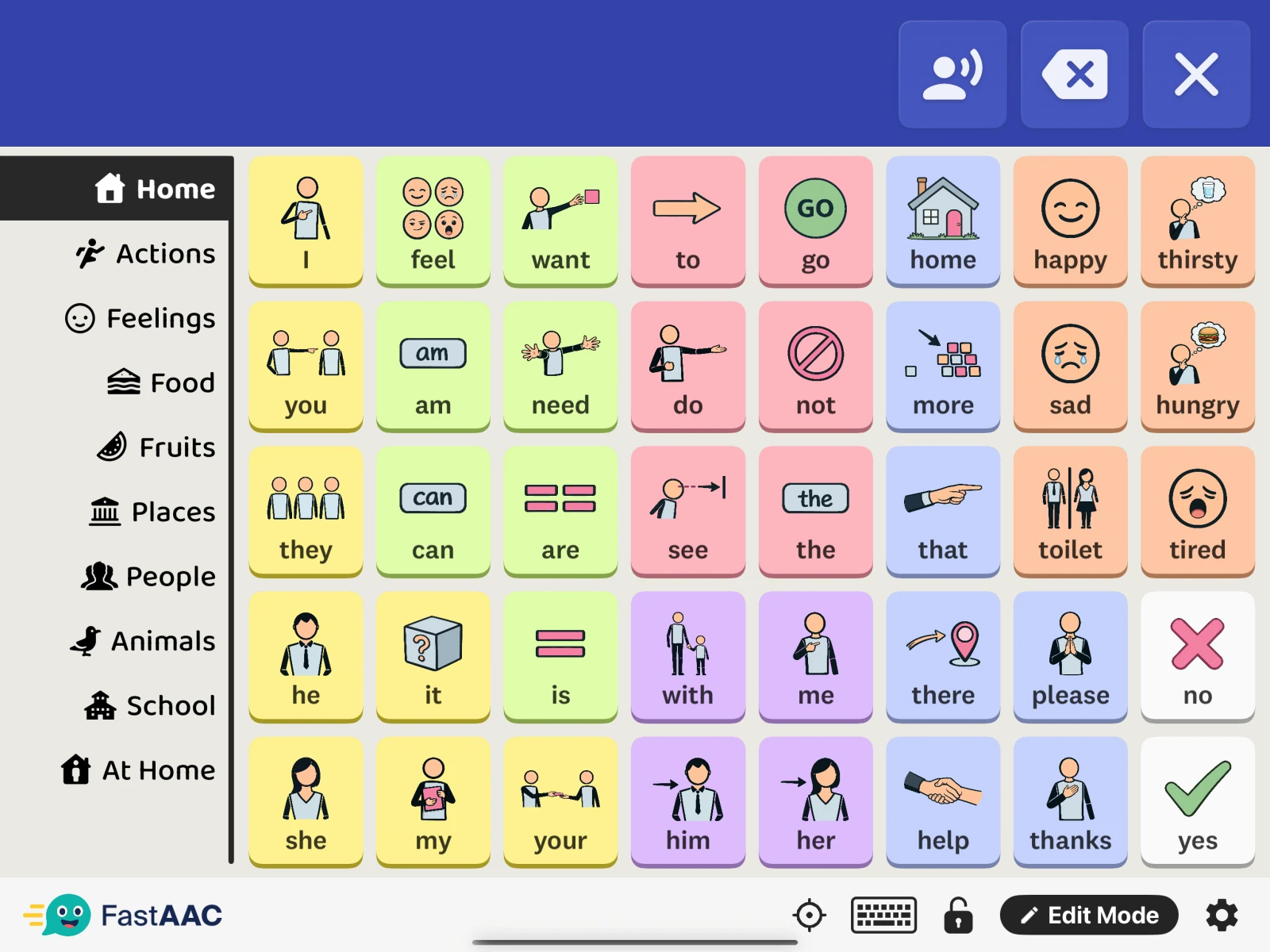
Select a number to explore
Screen lock
The open padlock means editing controls are unlocked. Locking hides Edit Mode and Settings.
Read the steps : Opening Edit Mode & SettingsEdit Mode
Opens tools for changing tiles, folders, and the board layout.
Read the steps : Opening Edit Mode & SettingsSettings
The gear opens app settings, including appearance, language, and voice.
Read the steps : Opening Edit Mode & SettingsStep-by-step instructions
Setting up Fast AAC
The welcome screen sets the language and starting board for your first conversations.
In the Fast AAC app
- Choose your language.
- Choose a starting board.
- Tap Get Started.
Available boards depend on your device. You can change the layout later in Library.
Opening Edit Mode & Settings
Editing controls are available after unlocking the communication screen.
In the Fast AAC app
- If locked, tap Screen lock. Enter your password if asked.
- Choose Edit Mode to change pages, or the gear for Settings.
- Use Exit or Exit Settings when finished. Lock the screen again.
Adding a page from Library
Library offers ready-made vocabulary pages to add to your current setup.
In the Fast AAC app
- Choose a page source, then a page.
- Tap Add Page.
Pages add vocabulary. Templates change the wider setup.
Changing templates
A template provides a different starting arrangement of pages and vocabulary.
In the Fast AAC app
- Choose a template → Apply Template.
- Review Keep Custom Folders or Delete All Folders.
- Confirm when ready.
Create a backup first. Applying a template can replace existing folders.
Understanding pages, folders & tiles
These building blocks organize vocabulary and connect different parts of the app.
In the Fast AAC app
- Tile — a word, phrase, or action.
- Folder — a page of tiles, reached from the folder bar or a linked tile.
- Library — ready-made Pages and Templates.
How everyday communication works.
A guide to words, sentences, typing, and suggestions.
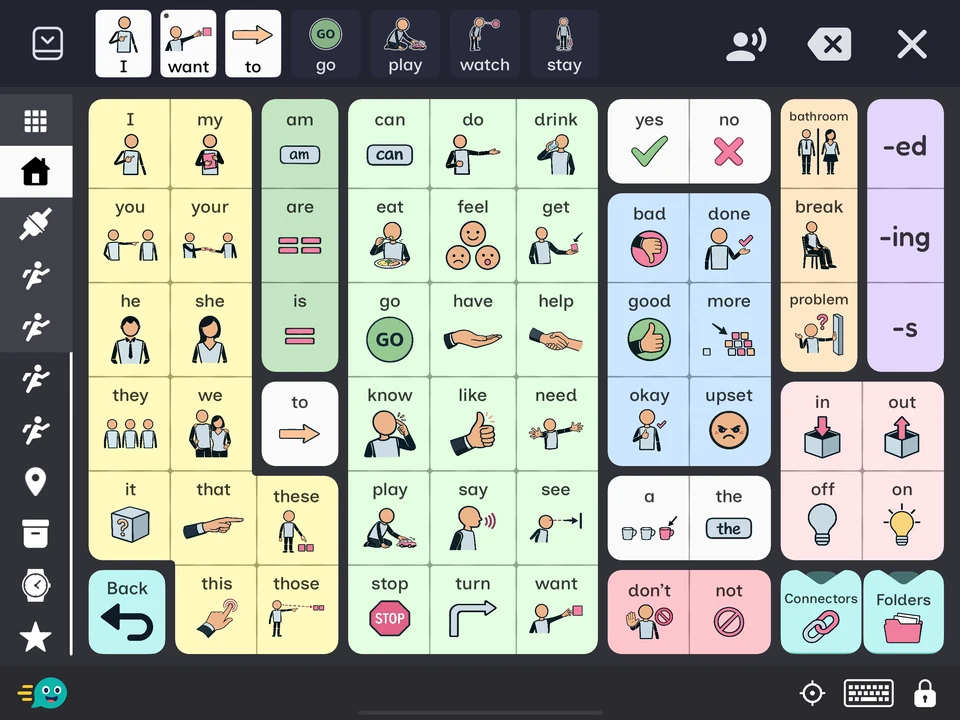
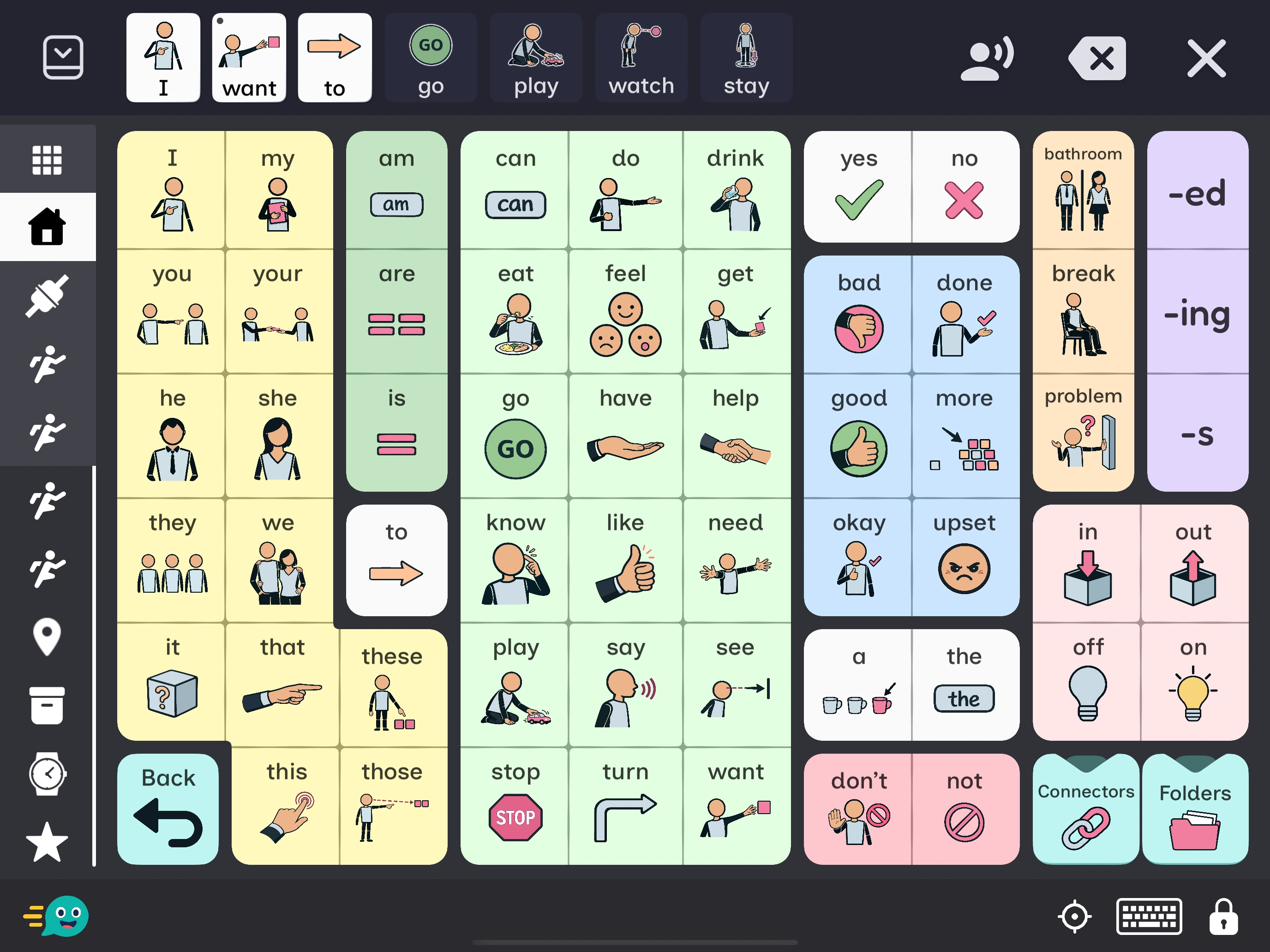
Select a number to explore
Sentence bar
Holds selected words before they are spoken.
Read the steps : Building & speaking a sentenceDelete & clear
Delete word removes the last word; Clear sentence removes all.
Read the steps : Building & speaking a sentenceStep-by-step instructions
Building & speaking a sentence
The sentence bar brings selected words together before reading them aloud.
In the Fast AAC app
- Tap word tiles in order.
- Tap Speak sentence.
- Use Delete word for the last word, or Clear sentence to start again.
Changing word endings
Word alternatives help a sentence use the right tense or form.
In the Fast AAC app
- Press a word marked with a dot at the top left.
- Slide to the form you want.
- Release to choose.
Word alternatives are available for English and Spanish.
Typing with Keyboard Assist
Keyboard Assist adds typed words to conversations alongside tile-based vocabulary.
In the Fast AAC app
- Set Keyboard Assist to Enabled.
- Return to your page and tap the keyboard icon.
- Type into the sentence bar.
Finding a tile
Tile Location Finder searches vocabulary and shows where a matching tile lives.
In the Fast AAC app
- Enable Tile Location Finder.
- Tap the locator icon → search for a word.
- Choose a match → Go To Tile.
Available on tablets.
Setting up sentence suggestions
Recommendations offer possible next words or phrases while a sentence takes shape.
In the Fast AAC app
- Choose a Recommendation Style.
- Set Max Recommendations; choose 0 to hide them.
- Enable Use Only My Phrases to limit suggestions to your saved phrases.
Saving your own phrases
My Phrases gives sentence suggestions a personal collection of familiar expressions.
In the Fast AAC app
- Tap Create and enter your phrase.
- Select a saved phrase to Edit or Remove.
Editing pages, folders & tiles.
How to add vocabulary and organize it around you.
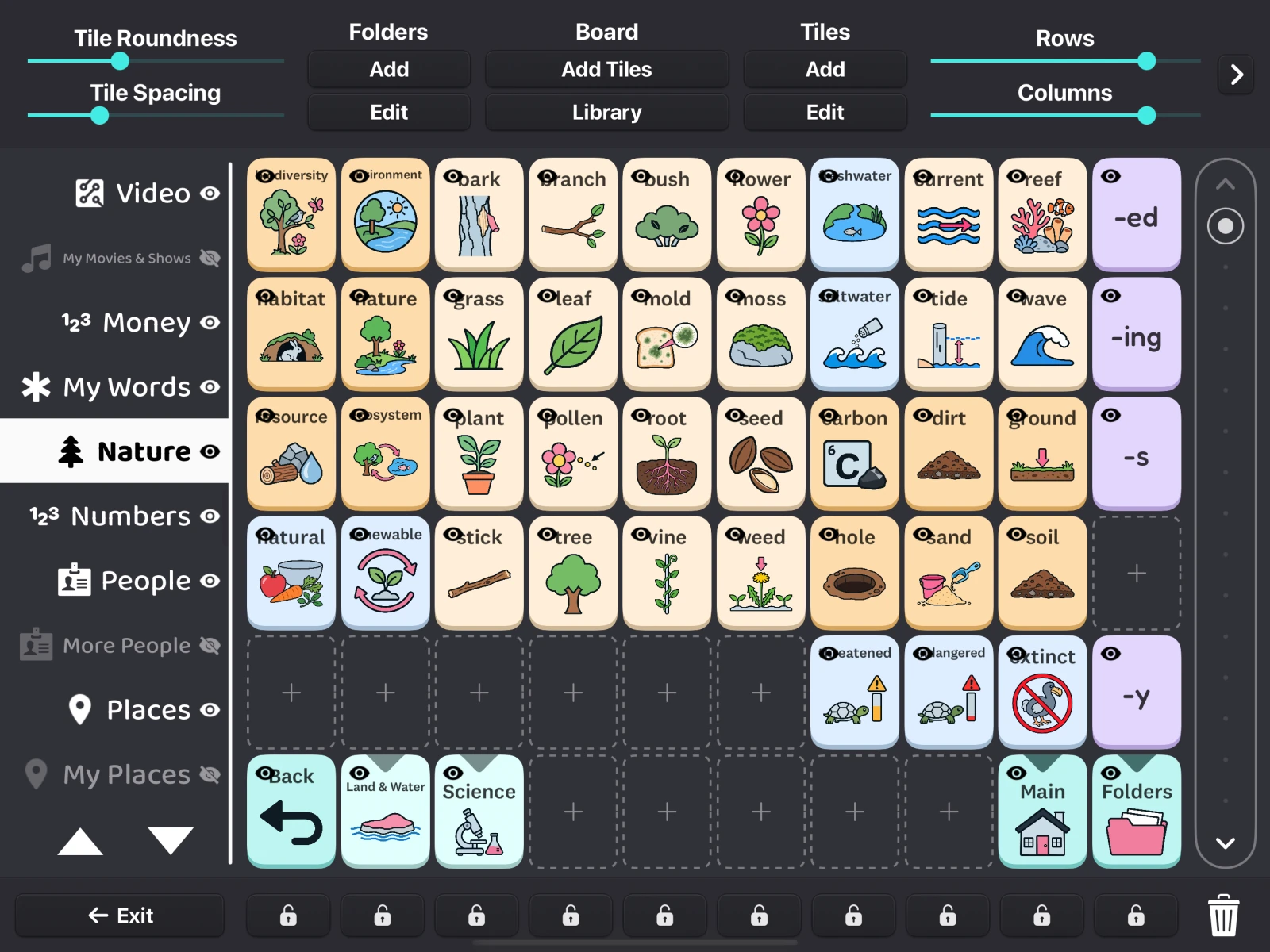
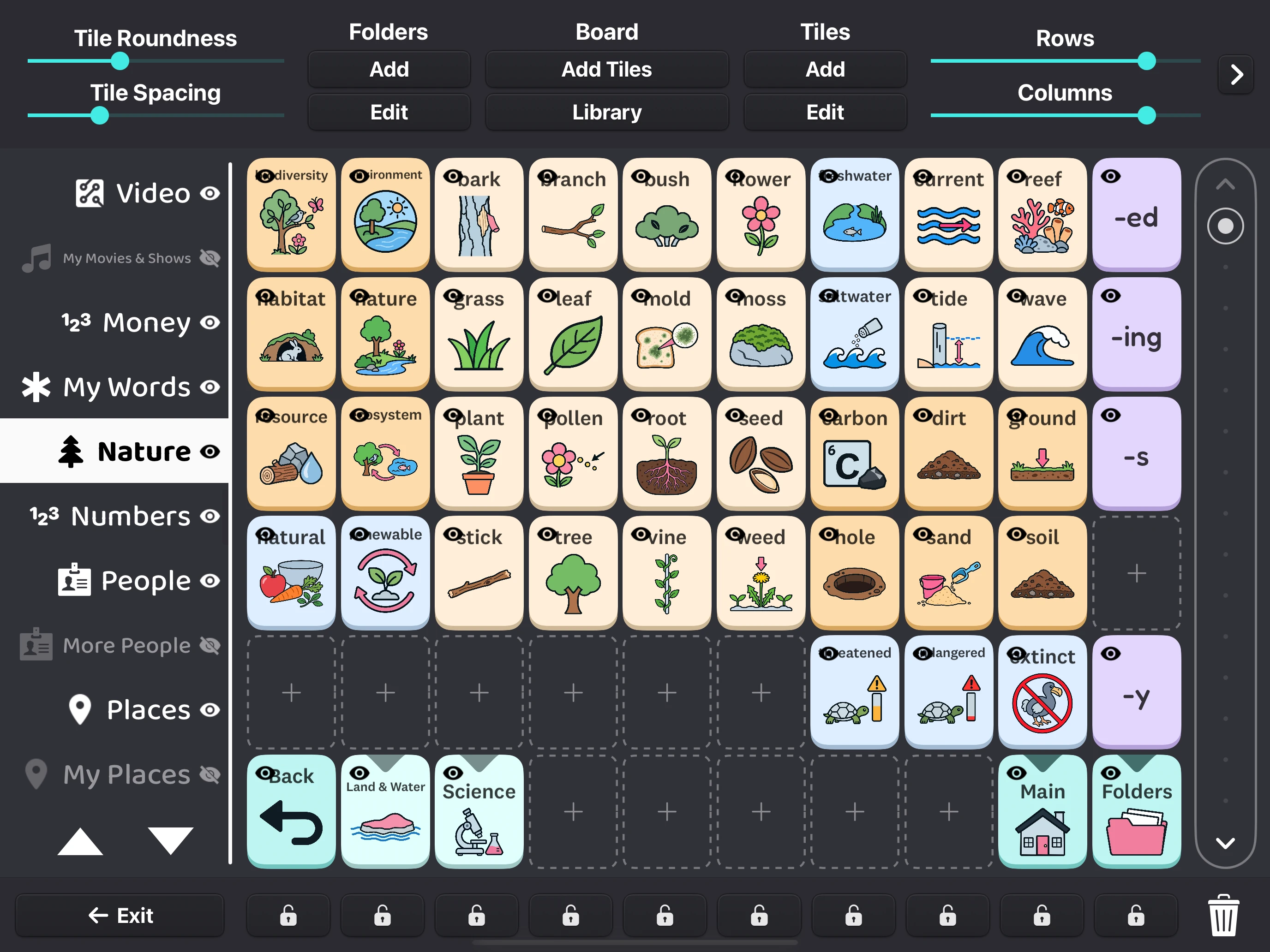
Select a number to explore
Add or edit folders
Add creates a folder. Edit changes the selected folder’s name and icon.
Read the steps : Adding & organizing foldersAdd tiles in bulk
Add Tiles creates several tiles from a list. Library contains ready-made Pages and Templates.
Read the steps : Adding several tiles at onceAdd or edit a tile
Add creates one tile. Edit opens the selected tile’s name, image, color, and voice.
Read the steps : Adding or editing a tileShow or hide tiles
Each tile’s eye control shows or hides it during communication. Hidden tiles stay available in Edit Mode.
Read the steps : Moving, hiding, or removing tilesShow or hide folders
An eye marks a visible folder; a crossed-out eye marks a hidden one. These controls change visibility in the folder bar.
Read the steps : Adding & organizing foldersAdd a word here
Tapping an empty + tile opens the editor to add a word in that position.
Read the steps : Adding or editing a tile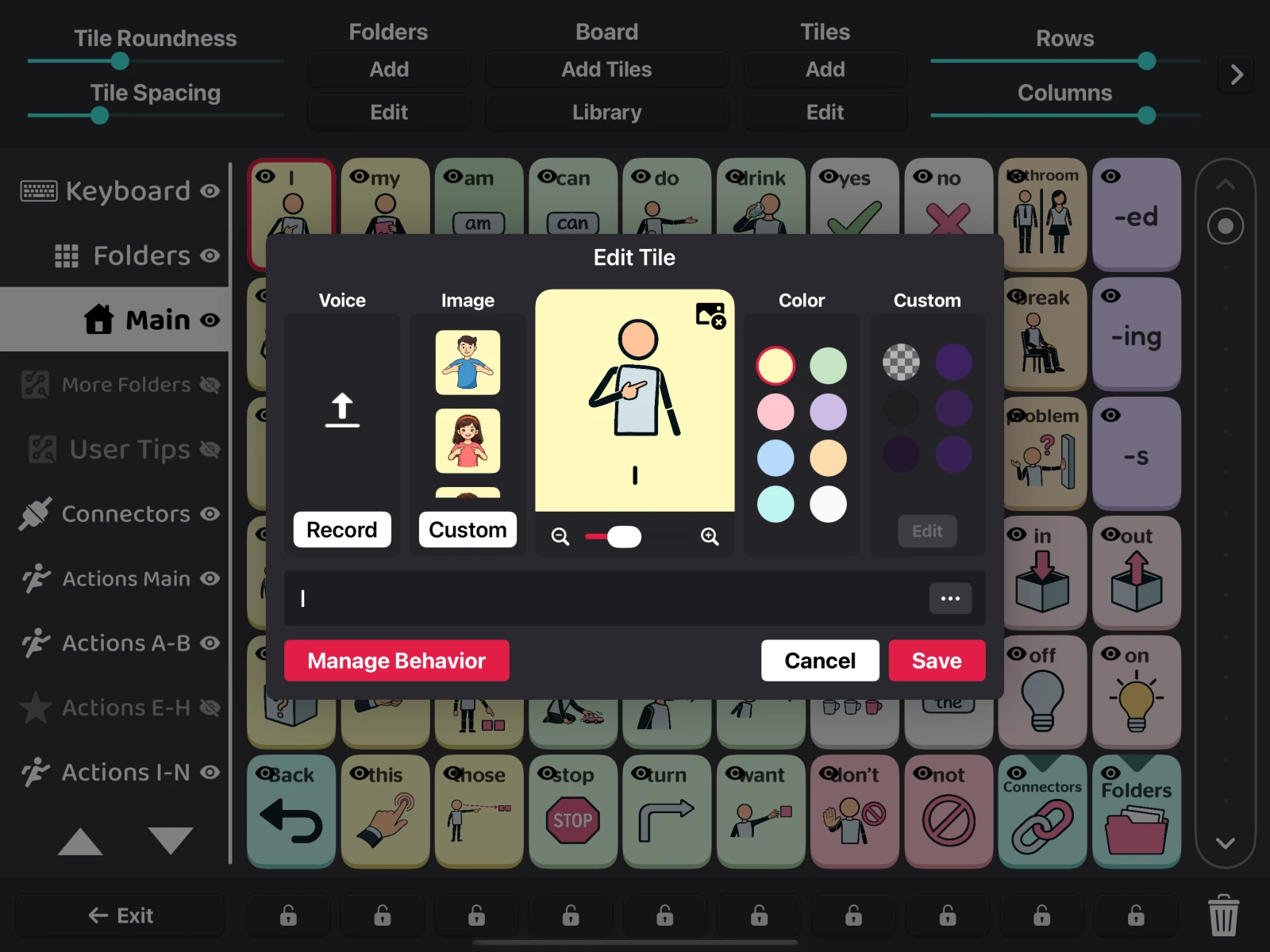
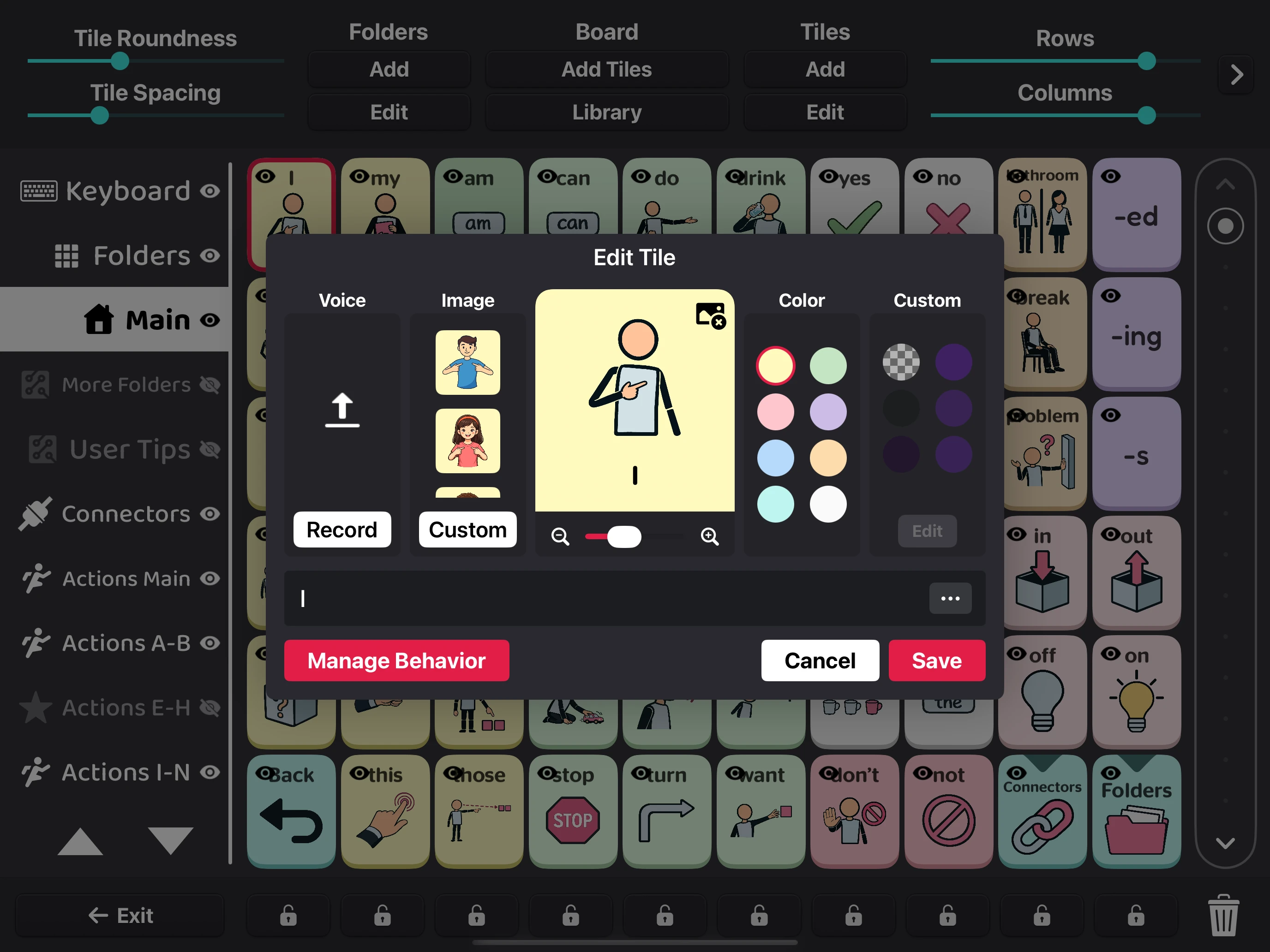
Select a number to explore
Record or upload audio
Record adds a voice recording; the upload arrow adds an audio file.
Read the steps : Recording a voice or adding audioChoose an image
Offers built-in artwork or a custom image from your device.
Read the steps : Using a custom photoAdjust pronunciation & size
The ••• button opens pronunciation, tile size, and spacing settings.
Read the steps : Adjusting tile pronunciation, size & spacingSet tile behavior
Sets the tile’s behavior: Tile, Folder, Scene, Video, or Keyboard.
Scene setup steps : Creating a SceneStep-by-step instructions
Adding or editing a tile
Each tile can represent a word or phrase with its own image, color, and voice.
In the Fast AAC app
- Choose Add, or select a tile → Edit.
- Set its name, image, color, and voice.
- Tap Save.
An empty + tile also opens the editor to add a word in that position.
Using a custom photo
Personal photos can make tiles easier to recognize for familiar people, places, or objects.
In the Fast AAC app
- Choose an image from your device.
- Tap Save.
Recording a voice or adding audio
A tile can use a recorded voice or an audio file for its sound.
In the Fast AAC app
- Choose Record → speak → Stop.
- Play it back, then Save.
- Use the upload arrow (Upload Audio) for an audio file, or Remove Voice to remove a recording.
Adjusting tile pronunciation, size & spacing
Additional Options fine-tunes one tile without changing the whole page.
In the Fast AAC app
- Pronunciation — change how the word is spoken.
- Column Span / Row Span — make the tile larger.
- Override Padding / Override Font Size — adjust this tile only.
- Tap Set → Save.
Adding several tiles at once
Add Tiles turns a list of names into several vocabulary tiles in one go.
In the Fast AAC app
- Enter names separated by commas.
- Choose a color → Save.
Moving, hiding, or removing tiles
A page can be reorganized as vocabulary needs change, with hidden tiles kept for later.
In the Fast AAC app
- Drag a tile to another position, empty slot, or folder.
- Tap its eye control to hide or show it.
- Drag to the trash can to remove it.
Create a backup before removing vocabulary.
Adding & organizing folders
Folders group related vocabulary into pages with their own names and icons.
In the Fast AAC app
- Choose Add, or select a folder → Edit.
- Set its name and icon → Save.
- Use the eye to hide it, or the up/down arrows to reorder it.
To remove a folder, choose Edit → Delete and confirm.
Linking a tile to a folder
A folder-linked tile opens another vocabulary page when selected.
In the Fast AAC app
- Choose a Target Folder.
- Or choose Library to add a ready-made page.
- Tap Set → Save.
Use Previous Folder to make a back tile. Speak When Pressed and Add To Sentence control its speech.
Recoloring tiles with Paint Mode
Paint Mode applies a chosen color to several tiles without opening each editor.
In the Fast AAC app
- Tap the right chevron (›) on the top editing panel, or swipe across it, to find Paint Mode.
- Choose a color, then tap tiles to recolor them.
- Hold a swatch for color variants.
- Tap the selected color again to finish.
How Scenes & video work.
How to build picture hotspots and set up video tiles.
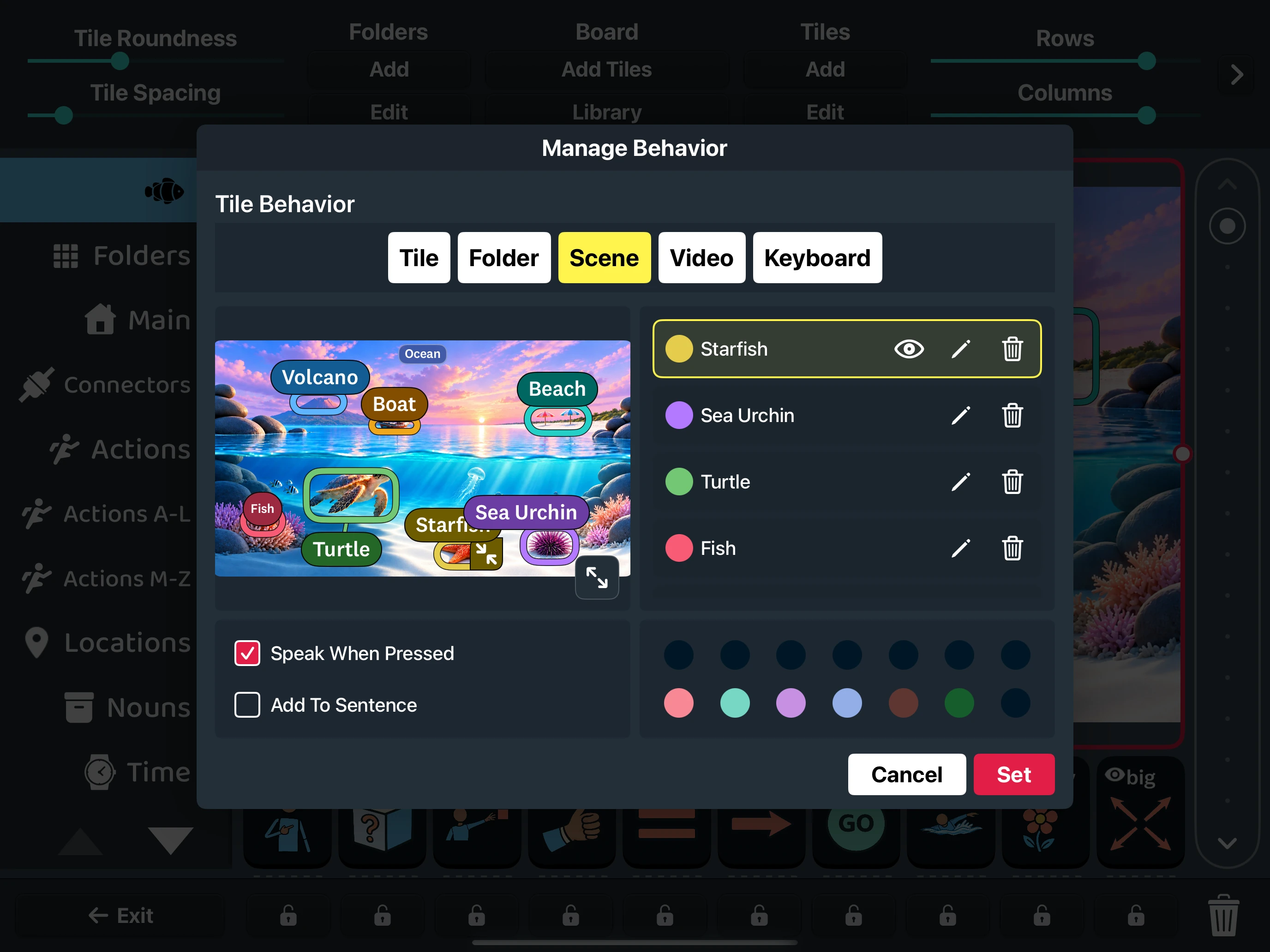
Select a number to explore
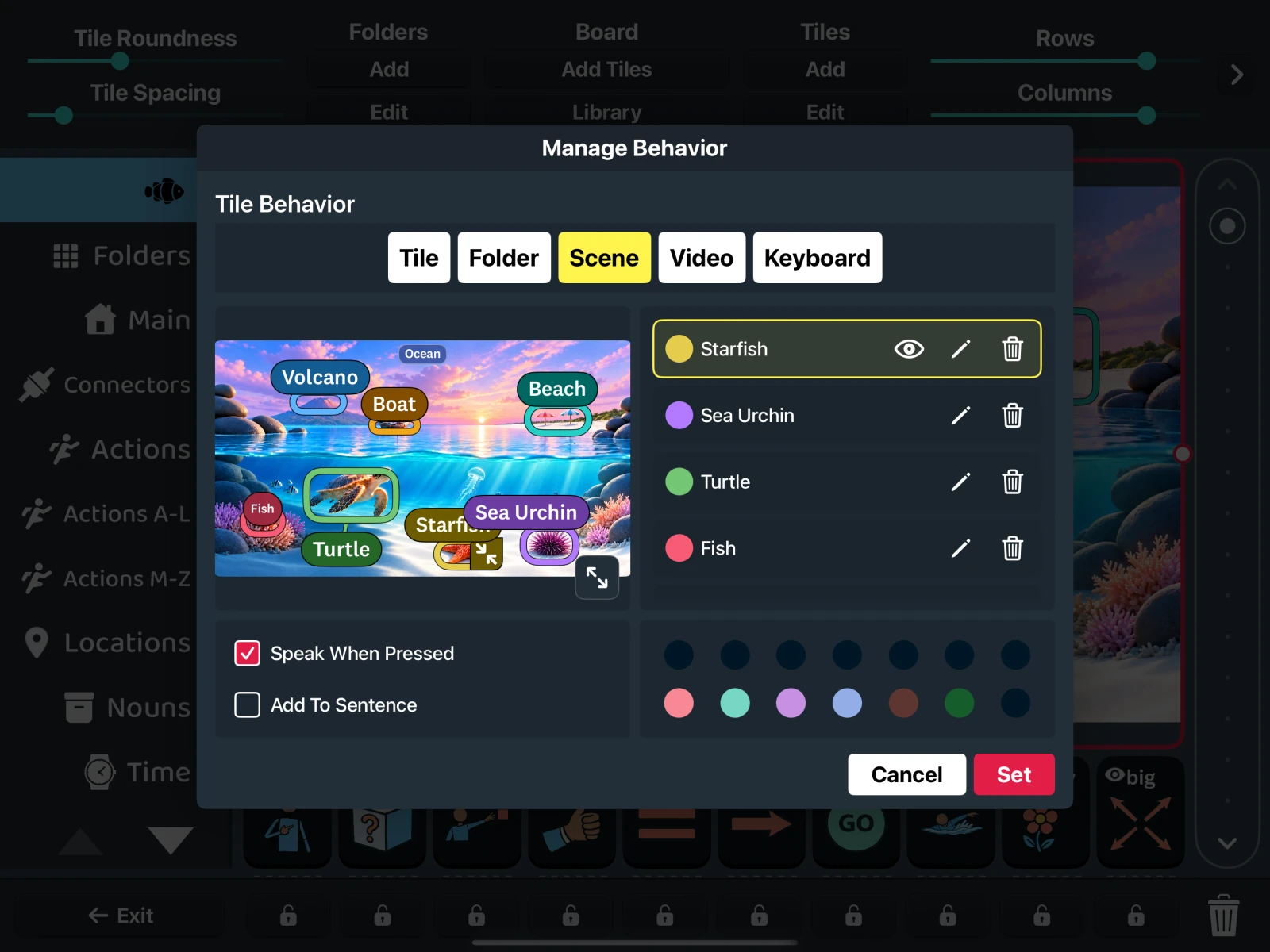
Scene preview
Shows each hotspot’s position and size. The expand control gives more editing room.
Read the steps : Editing Scene hotspots & labelsHotspot controls
Pencil edits Spoken text; eye shows or hides the label; trash removes the hotspot.
Read the steps : Editing Scene hotspots & labelsSpeech options
Speak When Pressed reads each hotspot aloud. Add To Sentence sends selections to the sentence bar.
Read the steps : Setting how Scene hotspots speakStep-by-step instructions
Creating a Scene
A Scene turns areas of a picture into hotspots with their own spoken text.
In the Fast AAC app
- Choose the tile’s image in Image.
- Open Manage Behavior → Scene.
- At the end of the hotspot list, tap Add Hotspot → draw a rectangle → pencil → enter Spoken text.
- Tap Set → Save.
Scene editing is available on tablets.
Editing Scene hotspots & labels
Each hotspot has an adjustable position, size, color, and label.
In the Fast AAC app
- Select a hotspot; use its pencil to edit Spoken text, or choose a color.
- Drag to move it; use its handles to resize.
- Use the eye control to hide or show its label.
Expand scene gives more room and controls for label position and border width.
Setting how Scene hotspots speak
Scene selections can speak immediately, join a sentence, or do both.
In the Fast AAC app
- Enable Speak When Pressed to hear each hotspot.
- Enable Add To Sentence to add selections to the sentence bar.
- Tap Set → Save.
Placing word tiles beside a Scene
Nearby word tiles add vocabulary that can be used alongside the picture’s hotspots.
In the Fast AAC app
- Use Column Span / Row Span to size the Scene tile.
- In Edit Mode, add or drag ordinary tiles into the remaining grid spaces.
Adding video to a tile
A video tile plays a selected portion of a local video or YouTube clip.
In the Fast AAC app
- Choose Custom Video, or paste a YouTube link → Load.
- Adjust the start/end controls or drag the range handles.
- Tap Preview → Set → Save.
Custom Video works offline. YouTube needs a connection and one-time consent on each device. Large videos may be omitted from backups with a notice.
Creating a keyboard key tile
Keyboard behavior lets tiles act as letters, spaces, or other typing controls.
In the Fast AAC app
- Choose Key, Space Bar, Speak Sentence, Backspace, or another keyboard action.
- Tap Set → Save.
Available on tablets. To open a keyboard page, link to its folder.
Personalizing the app’s appearance.
Options for symbols, colors, text, and layout.
Select a number to explore
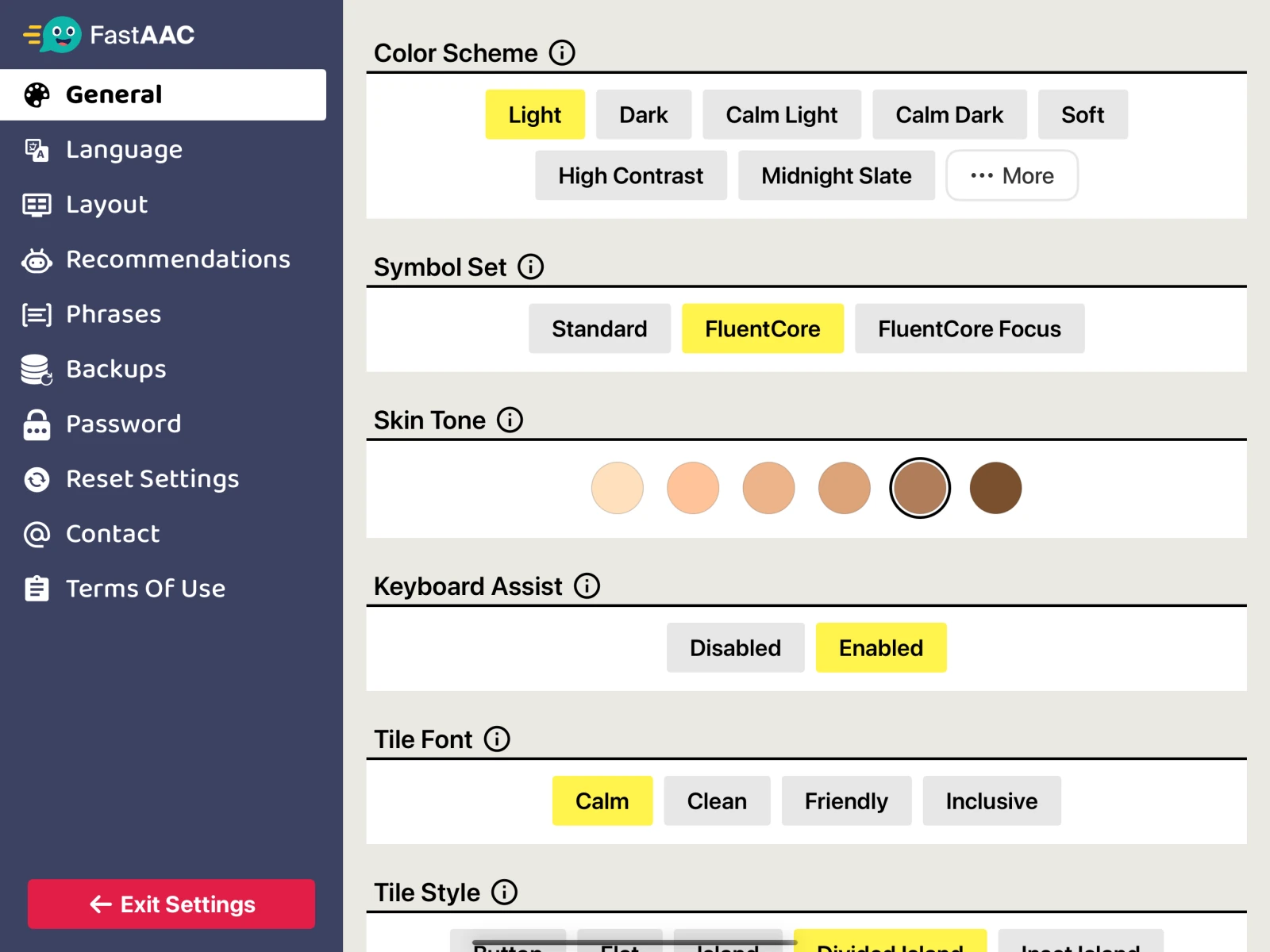
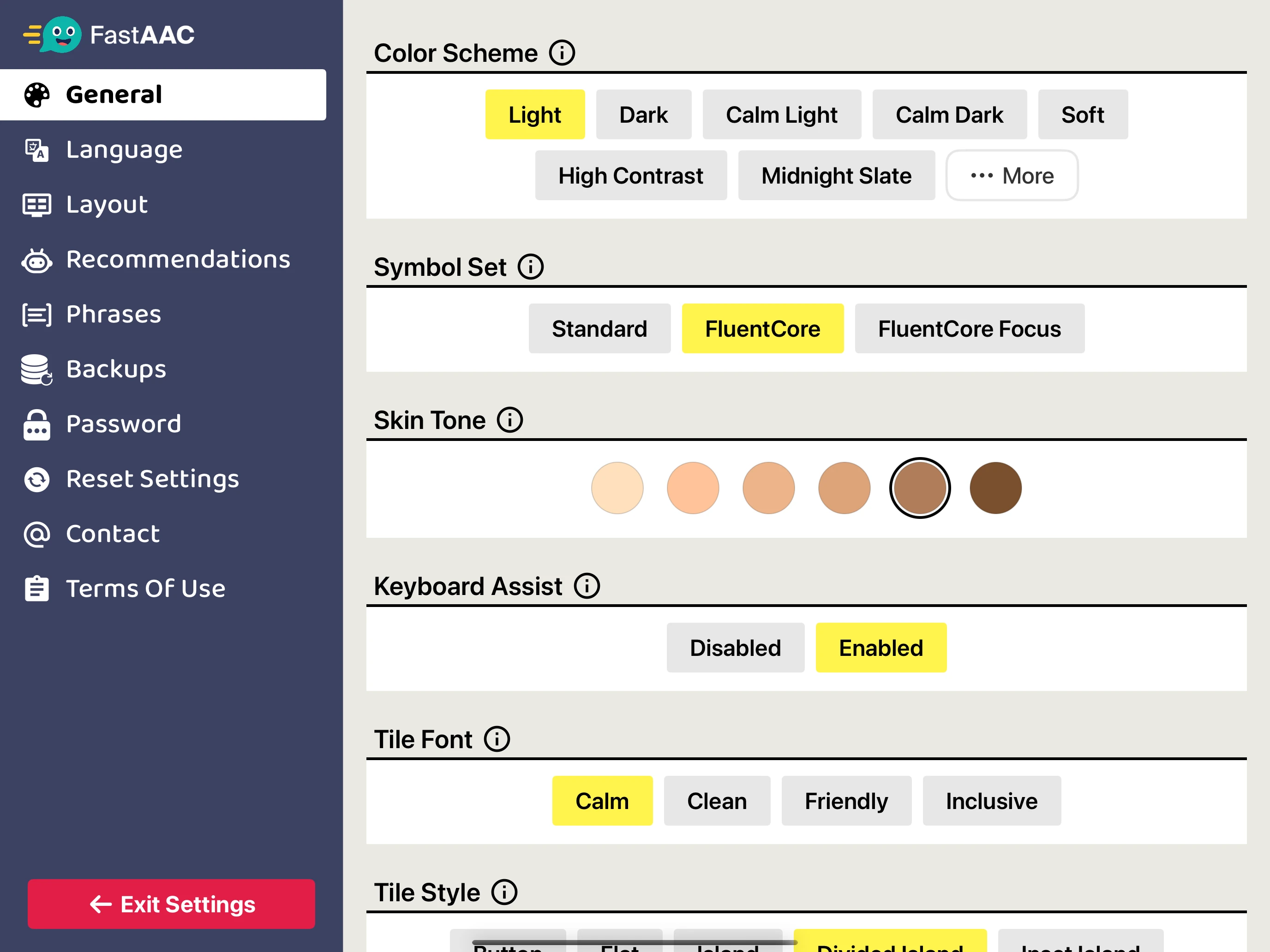
Color Scheme
Sets the app’s appearance and default tile palette.
Read the steps : Changing colors, fonts & tile styleSymbol Set
Selects the symbol library used for tile icons.
Read the steps : Choosing symbols & skin toneSkin Tone
Changes skin tone in supported FluentCore symbols. Appears when FluentCore is selected.
Read the steps : Choosing symbols & skin toneTile Font
Sets the typeface used for tile labels.
Read the steps : Changing colors, fonts & tile styleStep-by-step instructions
Choosing symbols & skin tone
Symbol Set changes the artwork library used across your vocabulary tiles.
In the Fast AAC app
- Open Symbol Set.
- Choose Standard, FluentCore, or FluentCore Focus.
- With FluentCore selected, use Skin Tone for supported artwork.
FluentCore and FluentCore Focus require Premium.



Included with Fast AAC



Available with Premium



Available with Premium
Changing colors, fonts & tile style
These settings shape the board’s overall look and the way tile labels appear.
In the Fast AAC app
- Color Scheme — choose an appearance.
- Tile Font — Calm, Clean, Friendly, or Inclusive.
- Tile Style — Button, Flat, Island, Divided Island, or Inset Island.
Changing rows & columns
Rows and columns determine how many tile positions fit on a page.
In the Fast AAC app
- If Rows and Columns aren’t visible, tap the right chevron (›) or swipe across the top editing panel.
- Adjust Rows and Columns.
- For one folder only: Folders → Edit → Override Grid Size.
Without Override Grid Size, the sliders change the shared grid.
Adjusting spacing & text size
Spacing and text controls help balance readable labels with room between tiles.
In the Fast AAC app
- Use the right chevron (›) or swipe across the top editing panel to find each group of sliders.
- Use Tile Roundness, Tile Spacing, and Tile Padding.
- Adjust Tile Font Size, Folder Font Size, and Folder Icon Size.
More controls are on the next toolbar page. On iPhone, swipe through the toolbar.
Adjusting the sentence & folder bars
Layout settings control the sentence area and how folders appear during communication.
In the Fast AAC app
- Sentence Bar Size — change the sentence area.
- Show Folder Bar / Show Only Folder Icons — simplify navigation.
- Tile Text Layout, Folder Marker, and Folders To Pin — refine your page.
Keeping columns in place
Locked columns stay in place while the rest of the board scrolls.
In the Fast AAC app
- Tap the lock below a column to keep it fixed.
- Tap again to unlock it.
Understanding voice & language settings.
How to choose a voice and adjust speech.
Select a number to explore
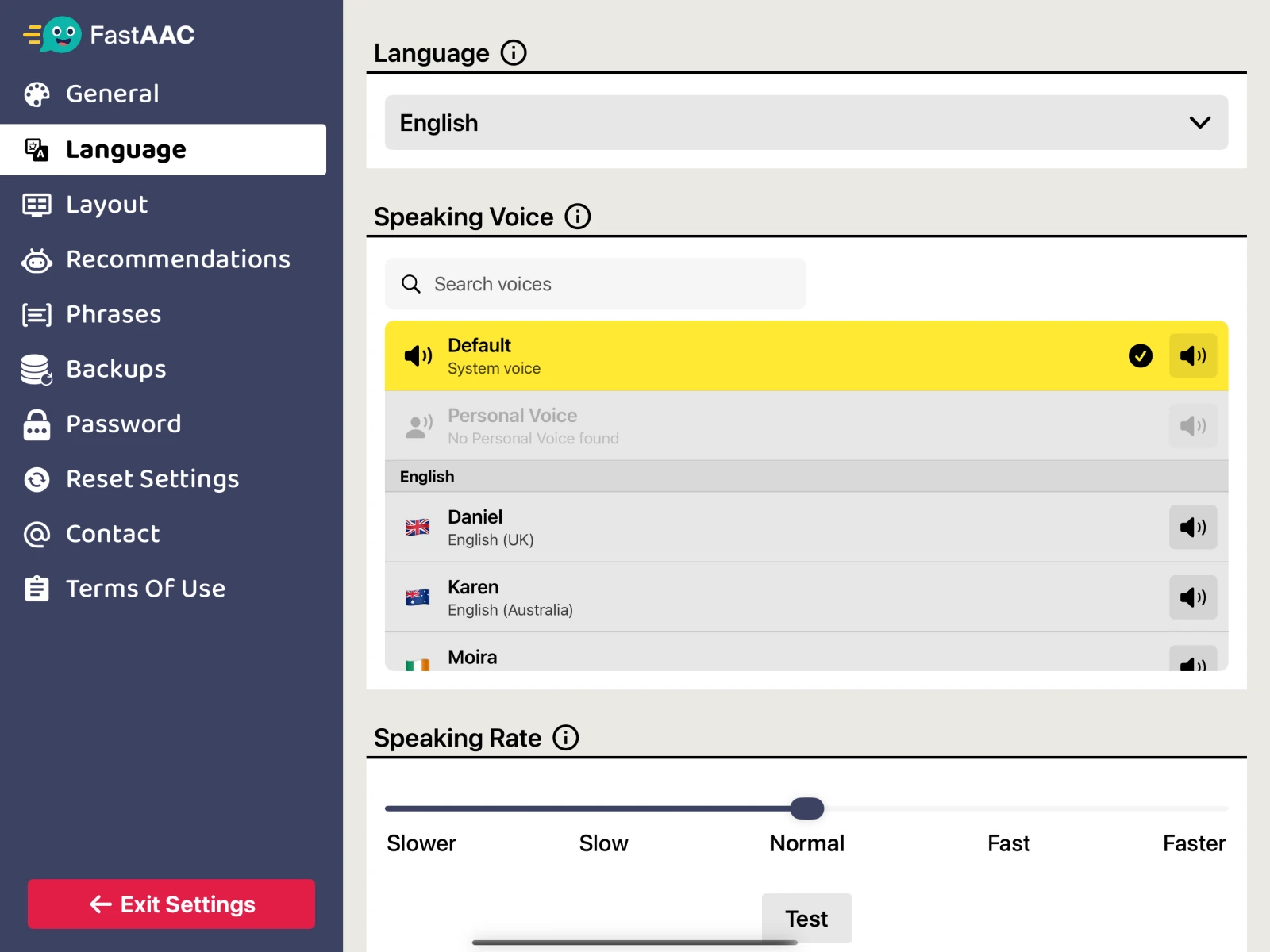
Language
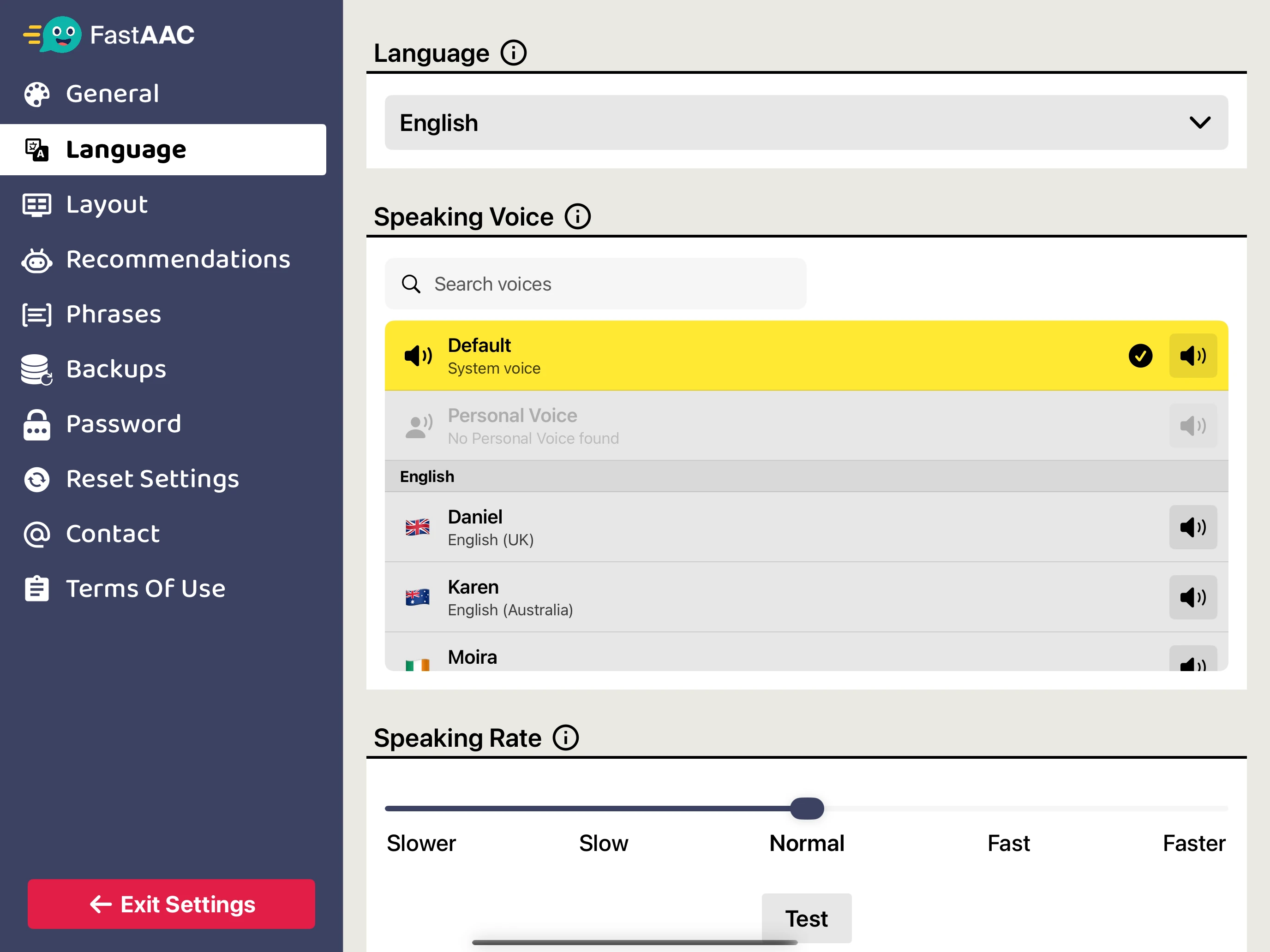
Sets the app’s language. Speaking Voice is chosen separately.
Read the steps : Changing the app languageSpeaking Voice
Search finds available voices. Speaker buttons preview them; selecting a row chooses the voice.
Read the steps : Choosing a speaking voiceSpeaking Rate
Sets how quickly the voice speaks. Test previews the current rate.
Read the steps : Adjusting speech speedStep-by-step instructions
Choosing a speaking voice
Speaking Voice controls the sound and accent of the app’s synthesized speech.
In the Fast AAC app
- Search by voice name, language, or country.
- Preview a voice, then select it.
Personal Voice appears when supported and available. Allow access if prompted.
- Use Search voices to find a voice.
- Tap its speaker button to preview, then select it.
Not downloaded? Install the voice in Android text-to-speech settings. Available voices depend on your speech engine.
Adjusting speech speed
Speaking Rate makes speech slower or faster while keeping the selected voice.
In the Fast AAC app
- Adjust the rate.
- Use Test to listen.
Setting when Fast AAC speaks
These options control speech feedback during tile selection, typing, and sentence playback.
In the Fast AAC app
- Instant Speak — speak each tile as it is selected.
- Keyboard Speech → Speak Characters — hear each typed character.
- Speech Utterance — highlight words during sentence speech.
Changing the app language
The app language and speaking voice are separate choices that can be matched.
In the Fast AAC app
- Select your language.
- Check Speaking Voice for a matching voice.
Your own tile names and recordings may need separate updates.
Adjusting touch & access settings.
Options for touch behavior, visibility, and protected editing.
Step-by-step instructions
Setting how tiles & folders activate
Activation gestures determine whether a selection happens at touch-down or when the finger lifts.
In the Fast AAC app
- Open Tile Activation Gesture or Folder Activation Gesture.
- Choose On Tap for activation at touch-down.
- Choose On Release to allow movement before lifting your finger.
Protecting Edit Mode & Settings
Screen lock can require a password before someone changes the app’s setup.
In the Fast AAC app
- Enter an unlock password and recovery email → Save.
- Return to the main page and use Screen lock.
- Enter the password when unlocking editing controls.
Reducing glare
Anti Glare adds a subtle paper texture to the app’s appearance.
In the Fast AAC app
- Set Anti Glare to Enabled for a subtle paper texture.
Simplifying what is visible
Visible vocabulary and navigation can be reduced to suit the current conversation or learning stage.
In the Fast AAC app
- Hide unused tiles or folders with their eye controls in Edit Mode.
- Adjust Sentence Bar Size and Show Folder Bar in Settings → Layout.
- Set Max Recommendations to 0 to hide suggestions.
Recovering a forgotten password
Password recovery uses the email address saved when the unlock password was set.
In the Fast AAC app
- Choose Forgot in the unlock dialog.
- Check the recovery email you set for a temporary password.
On iPhone, Forgot is shown as an icon.
Saving & sharing your setup.
How backups, page sharing, and exports work.
Step-by-step instructions
Creating a backup
A backup keeps a saved version of your setup for later recovery or transfer.
In the Fast AAC app
- Choose Create.
- Name the backup → Create.
- Use Export Backups → Export to keep a copy outside the app.
Restoring a setup or selected pages
A saved backup can replace the full setup or add selected pages to the current board.
In the Fast AAC app
- Select a backup → Restore.
- Choose Full → Restore to replace the active setup.
- Or choose Partial → select pages → Import.
Partial adds copies and keeps your current board and settings. Back up before a full restore.
Exporting or importing a backup file
A password-protected backup file carries a setup outside the app or to another device.
In the Fast AAC app
- Select a backup → Export → enter an Export Password → Export. Save or share the file.
- On the receiving device: Import → choose the file → enter the same password → Import.
Import replaces the active setup. Back up first and keep the export password. Use .fastaacbackup files between iOS and Android.
Sending a backup to a nearby device
Air Send and Air Receive transfer a saved backup between nearby compatible devices.
In the Fast AAC app
- Receiving device: open Air Receive.
- Sending device: select a backup → Air Send.
- On the receiver, Accept. Then select the received Local Backup → Restore.
Requires Premium. Use Export / Import between iOS and Android.
Sharing a page with a QR code
Page QR shares a vocabulary page through a code another device can scan.
In the Fast AAC app
- Tap the right chevron (›) on the top editing panel, or swipe across it, to find Page QR.
- Select a folder → Page QR → Generate.
- On the other device: Page QR → Load → Scan, or Import a QR image.
- Point at the code → Add Page.
Use a backup for Scenes or custom media. QR sharing works without an internet connection.
Exporting a page as PDF or PNG
An exported page provides a printable or shareable copy of the vocabulary layout.
In the Fast AAC app
- Select your folder.
- Tap the right chevron (›) on the top editing panel, or swipe across it, to find Export.
- Choose PDF or PNG.
- Save or share the exported page.
Use PDF for a printable page; PNG for an image.
Troubleshooting & Premium.
Answers to common questions about the app.
Step-by-step instructions
When speech has no sound
These checks help narrow the problem to device audio, the speaking voice, or one tile.
In the Fast AAC app
- Check device volume and the current audio output.
- Open Settings → Language; select a voice and test the speaking rate.
- If only one tile is affected, check its recording and pronunciation.
When a tile or folder is missing
Vocabulary may be hidden, stored in another folder, or recoverable from a backup.
In the Fast AAC app
- Unlock → Edit Mode. Check its eye control.
- Check other folders, or use Tile Location Finder on a tablet.
- If it was deleted, check a saved backup.
When a photo, recording, or video won’t open
Media playback may depend on device permissions, the original file, or a YouTube connection.
In the Fast AAC app
- Allow microphone access when recording.
- Reselect the original photo, audio, or video file.
- For YouTube, check your connection and tap Retry. On a new device, enable YouTube in Video setup.
Resetting the app setup
Resetting replaces the active board and settings with a fresh setup.
In the Fast AAC app
- Create and export a backup first.
- Choose Reset All Settings and review the reset options.
- Confirm only when you want to replace the active setup.
Reset replaces tiles, folders, and settings. Saved backups remain available.
Removing unused media
Media cleanup frees space by removing files the app no longer needs.
In the Fast AAC app
- Choose Remove Unused Media.
- Review the confirmation → Remove.
On iPhone, the button is Remove Media. Media used by tiles or backups is kept; recent imports are kept for 24 hours.
Contacting Fast AAC support
A short description of the issue and your device helps support understand what happened.
In the Fast AAC app
- Email support@fastaac.com.
- Include your device, app version, and what you were trying to do.
Find your answer.
No matches yet.
Try a shorter term: tiles, voice, scene, or backup.
Still need a hand? Get in touch ↗